
Dashboard
Your day at a glance with agenda, timers, recent events, and cases.
The Dashboard is your home screen after sign-in. It brings together your agenda, running timers, recent activity, and recently opened cases so you can resume work quickly.
Review your workday
The Dashboard gives you a starting point for common case and timekeeping tasks. Use it to identify upcoming work, return to a matter, and check whether a timer is still running.
| Section | Purpose |
|---|---|
| Agenda | Review today's calendar events and reminders. |
| Open timers | Stop or edit running time entries. |
| Recent events | Review recent notes and calendar activity. |
| Recent cases | Reopen matters you accessed recently. |
Start with the Dashboard
Find a matter quickly
Use global case search from the header when you know the matter you need. Press ⌘K on macOS or Ctrl+K on Windows to open the search, then select the case from the results. This is useful when the matter is not listed under Recent cases.
The Dashboard is a launch point, not a replacement for the case workspace. Open the case to review its parties, documents, notes, events, and billing activity.
Continue in the right workspace
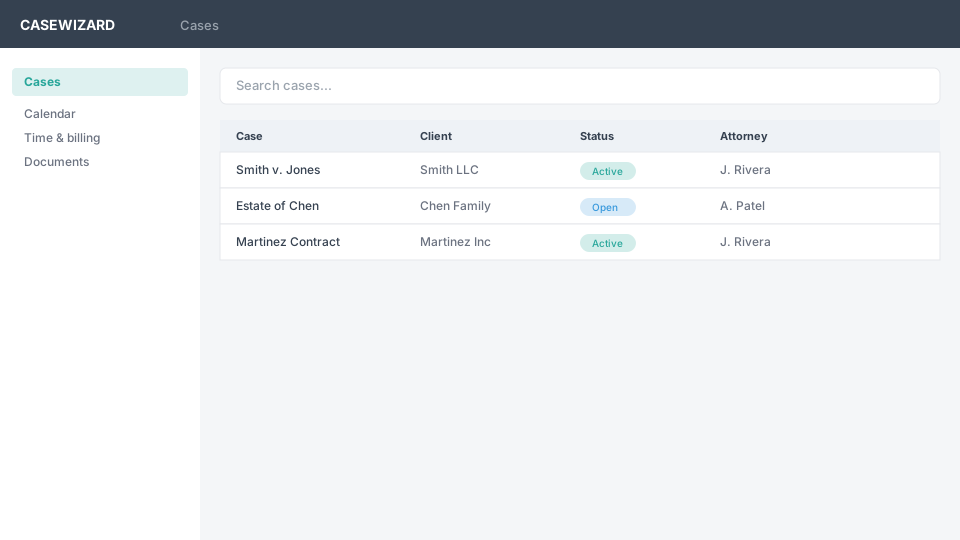
Open Calendar when you need day, week, or month planning. Open Time and billing to review or enter time. Open Cases to search the full matter list. Recent activity on the Dashboard links back to the relevant area or case when that context is available.