
Calendar
View hearings, deadlines, and appointments tied to your cases.
The Calendar shows the events you can see, from your matters and your firm's schedule, in day, work week, week, month, and agenda views.
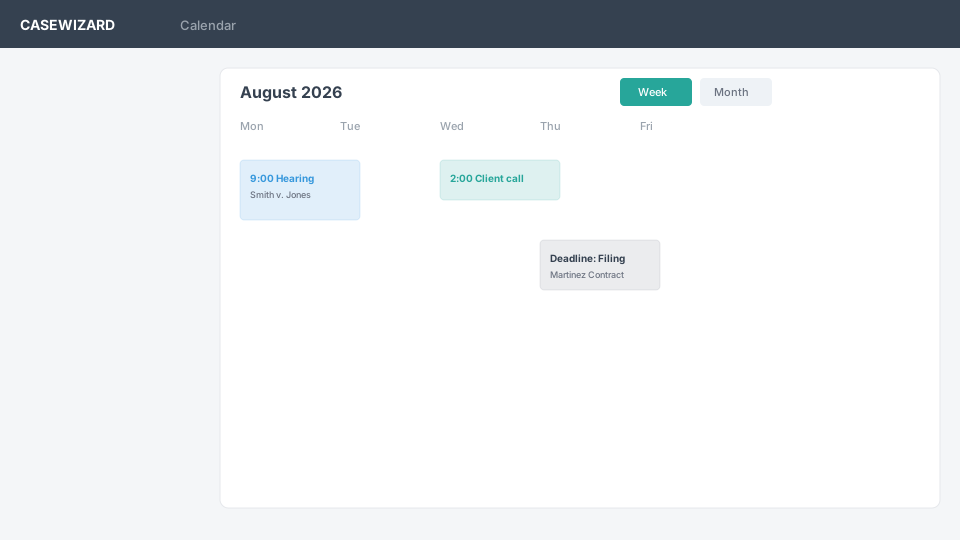
View your schedule
Use the view that matches the planning task. Day view helps you focus on immediate appointments. Work week and week views help you organize upcoming work. Month view gives a broader view of hearings, deadlines, and other events, and agenda lists the coming days. Day, work week, and week views show business hours; select Show full day to see the whole day. The event's case link takes you to the matter workspace, where you can review contacts, documents, notes, and billing information.
Move or resize an event
If your role can update calendar events, drag an event to another time or day to move it, or drag its bottom edge to change when it ends. CaseWizard saves the change when you let go and confirms it with a message. Without that permission, selecting an event still opens its details.
Create an event
Create an event from a case by selecting Add Event, which keeps the event linked to that case. You can also select Add Event on the Dashboard or on Notes & Events, and choose the case there. The Calendar itself has no create button. Review the event details before saving, including its date, type, and case.
Common event types include Deposition, Discovery, Filing, Hearing/Trial, IME, Note, Tracking, Leave of absence, and Settlement Mediation. Calendar colors help distinguish event types at a glance.
Use the case link on an event when you need matter context. Case-linked events can connect your schedule with the case's activity and related records.
Subscribe from an external calendar client
Select Subscribe or download calendar on the Calendar page to add your CaseWizard events to Apple Calendar, Outlook, or another app that supports subscription feeds. You can subscribe with the webcal link, copy the subscription URL, or download an .ics file. The feed holds the events you can see in CaseWizard, except notes, and follows your case access. Where your firm enables it, you can also connect Microsoft.
Treat your subscription URL as sensitive: anyone with the URL can read the events in it.
If an event is missing, check the selected calendar view, date range, and case association. Contact your firm administrator if you need access to an event or integration.