
Cases
Find, open, and update matters in CaseWizard.
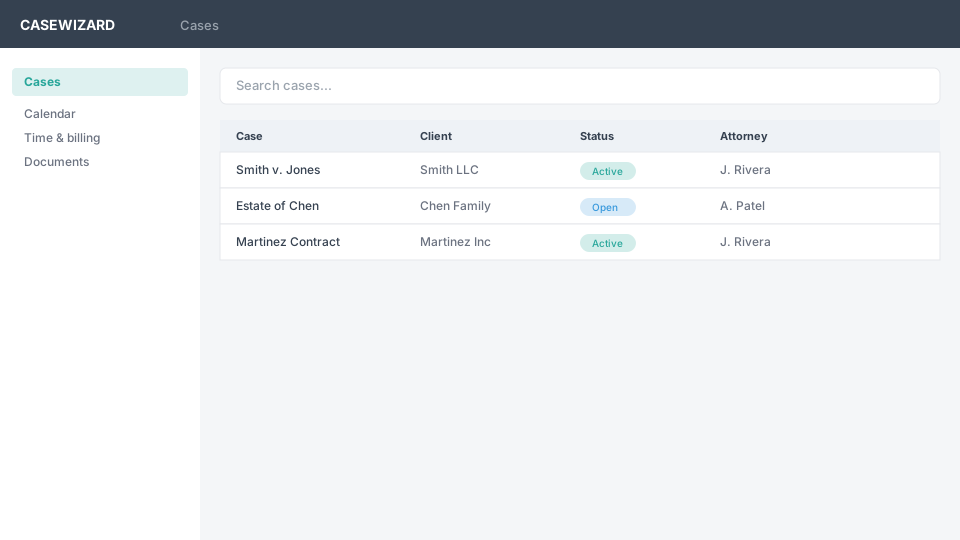
The Cases area is where your firm tracks active and closed matters. Search, filter, and sort the list before opening a case workspace.
Find a case
Search is useful when you know part of a matter name or client name. Filters help when you need a group of matters, such as cases assigned to a particular attorney or cases with a particular status. Use global case search from the header with ⌘K on macOS or Ctrl+K on Windows when you need to jump to a case from another area of CaseWizard.
Review and update a case
After opening a case, review its summary and use the case tabs to reach the information you need. The case workspace can include contacts, documents, calendar events, notes, expenses, settlement information, and billing activity tied to the matter. The available information depends on the case type and your firm's configuration.
Update the case status and key dates as the matter progresses. Use the case detail page for matter-specific actions such as adding a timer, event, or note. See Case detail for the workspace layout and available actions.
Column sorting and filters are especially useful when your firm manages many active matters. Ask your firm administrator about the fields and filters configured for your case list.
Work with closed cases
Closed cases remain available in the case list. Opening a closed case lets you review its information, but closed cases are read-only until they are reopened. Follow your firm's matter-closing policy before changing a case lifecycle status.
Permissions and visibility
Your role and matter assignments determine which cases and fields you can view or change. If a case, contact, document, or billing record is missing, contact your firm administrator rather than creating a duplicate record.