
Getting started
Go from sign-in to your first useful workflow in CaseWizard.
CaseWizard gives attorneys, paralegals, and firm administrators one place to review matters, schedule work, manage documents, and configure firm settings.
Sign in and open the dashboard
See Sign in for password reset and account help.
Your firm controls which sign-in methods and settings are available. If you cannot sign in or do not see your firm, contact your firm administrator.
Learn the main areas
Use the main areas of CaseWizard according to the work you need to complete:
| Area | What you do there |
|---|---|
| Dashboard | See your day at a glance. |
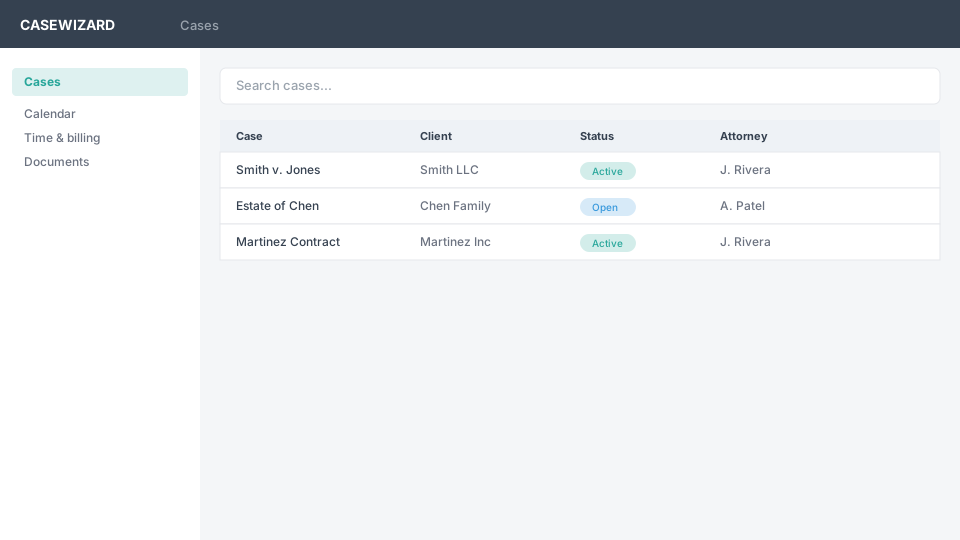
| Cases | Open, search, and update matters. |
| Calendar | View hearings, deadlines, and appointments. |
| Time and billing | Record time and manage invoices. |
| Documents | Upload, organize, and share files. |
| Settings | Configure your profile and firm integrations. |
Choose a first workflow
Start with the area that matches your immediate task. If you are preparing for work on a matter, open Cases and locate the relevant case. If you are planning upcoming work, review Calendar for hearings, deadlines, and appointments. If you need to prepare or review matter files, open Documents. For administrative work, use Settings or Administration when those areas are available to your account.
Access depends on your account and firm permissions. If an area or case is not visible, ask your firm administrator to confirm that your account is provisioned correctly.
Keep your account ready
Use a sign-in method supported by your firm and keep your password current. On a shared workstation, sign out from Settings when you finish. If your firm uses two-step verification, complete the setup before you need to access a case under time pressure.